• Home
  • About Us
  • Contact Us
  • Privacy Policy
  • Terms and Conditions
  • Write For Us
  • Skip to primary navigation
  • Skip to main content
  • Skip to primary sidebar

Healthy Life Vision

Making your life healthier

  • Health
  • Natural Remedies
  • Beauty
  • Diet & Weight Loss
  • Show Search
Hide Search

How do I know my router’s WiFi network password?

Gudrun Howell · January 18, 2023 ·

If you’ve bought yourself a new Wi-Fi router, you’re probably looking for its password. Or, you want to connect a new device to your Wi-Fi network, but you no longer have its password? Here is a simple solution, to find it.

We will share with you, the trick that allows you to find the password of your Wi-Fi router, in order to connect all the devices you want.

To connect to your Wifi network, it is essential to know the password of your router. In some cases, you may forget it. Find out how to find it thanks to this simple and effective solution.
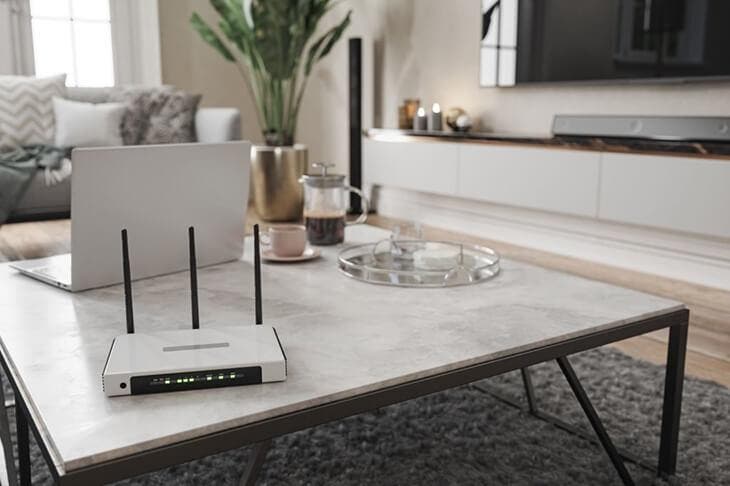
Wi-Fi router on the living room table.
  • Look at the sticker under the Wi-Fi router to discover the password

When you install a WiFi router, naturally, you have to look for the password to connect to it. You can find this information on the back of your router. The internet service provider usually installs a label with all the information that corresponds to your WiFi network.. There you will see the name of your WiFi network as well as the default password that you will need to use to automatically connect your devices.

Discover other solutions to recover your Wi-Fi router password
Installing a Wi-Fi router

To recover the password of your Wifi router, you can use this simple method on your Windows computer.

  • Use your computer’s control panel to find out your WiFi password

To do this, go to “Control Panel”, then go to “Network and Internet”, “Network and Sharing”. In Network and Sharing Center, select the name of your Wi-Fi network. In the network status, click “Wireless Properties”. Then choose “Security”, then check the box, “show characters”. The password of your Wifi network may then be displayed.

  • Find the WiFi password from the router interface

The password for your WiFi network is available from your router’s interface. You can find it by going to the router’s settings. To do this, check the home of the interface or go to the Wifi section of your router. In general, this tab is located at the top left of the screen but it depends on the routers. On the Wifi network settings page, you will find the name of the network, the type of security encryption used, as well as the password. You will then be able to discover the password to connect to the Wi-Fi network of your internet router.

If you still can’t find the word of your network despite all these tips. You can reset your router by restoring to factory settings to discover the password displayed on the label on the back of the router.

Now that you know how to know the password of your Wi-Fi router, you will be able to connect all your devices to it and you will no longer need to enter the password every time you log in again.

Read also: How to connect to any WiFi without needing a password?

Related

Share this post:

Share on FacebookShare on X (Twitter)Share on PinterestShare on LinkedInShare on Email

Filed Under: Health

About Gudrun Howell

Primary Sidebar

Selected for you

Essential plants for better sleep (without addiction)

How to Reduce Stress to Improve Skin Quality

Tips to relax and unwind in 5 minutes

Motivating yourself to exercise: tips and tricks


Recent Comments

    Categories

    • Beauty
    • Diet & Weight Loss
    • Fitness
    • General
    • Health
    • Natural Remedies

    When the temperatures drop, nothing is more comforting than a warm bath. … [Read More...] about The benefits of hot baths for the body and mind in winter

    The Pain Timeline: What to Expect Day in and Day Out The Pain Peak: The … [Read More...] about How many days to heal?

    Nykyisin yhä useampi pelaaja etsii uusia mahdollisuuksia nettikasinoilta, … [Read More...] about Verovapaat voitot ja uusi nettikasino miksi valita tuore pelipaikka

    Introduction Switching from traditional cigarettes to vaping represents a … [Read More...] about Finding the Best Cigalike for Your Vaping Journey

    Loose teeth in adults: a warning signal not to be ignored Can you feel that … [Read More...] about Will it fall or can it be saved?

    Wearing contact lenses while traveling offers a lot of freedom, but it … [Read More...] about Travelling with contact lenses: the essentials to have in your bag


    Healthy Life Vision © 2018.
    This website uses cookies to improve your experience. We'll assume you're ok with this, but you can opt-out if you wish.Accept Read More
    Privacy & Cookies Policy

    Privacy Overview

    This website uses cookies to improve your experience while you navigate through the website. Out of these, the cookies that are categorized as necessary are stored on your browser as they are essential for the working of basic functionalities of the website. We also use third-party cookies that help us analyze and understand how you use this website. These cookies will be stored in your browser only with your consent. You also have the option to opt-out of these cookies. But opting out of some of these cookies may affect your browsing experience.
    Necessary
    Always Enabled
    Necessary cookies are absolutely essential for the website to function properly. This category only includes cookies that ensures basic functionalities and security features of the website. These cookies do not store any personal information.
    Non-necessary
    Any cookies that may not be particularly necessary for the website to function and is used specifically to collect user personal data via analytics, ads, other embedded contents are termed as non-necessary cookies. It is mandatory to procure user consent prior to running these cookies on your website.
    SAVE & ACCEPT